Posts

Showing posts with the label XIAO nRF52840 Sense

CircuitPython BLU UART on Seeed Studio XIAO nRF52840/ESP32S3 Sense, connect to Raspberry Pi as Serial Console.

Image
Implement CircuitPython BLU UART on Seeed Studio XIAO nRF52840 Sense / XIAO ESP32S3 Sense running CircuitPython 9.2.7. Library needed: ~ adafruit_ble To install adafruit_ble on CircuitPython device using circup: circup install adafruit_ble Read " Install and using CircUp (CircuitPython library updater) to install CircuitPython libraries " for more about CircUp. Code: cpy_ble_uart.py """ Circuitpython 9.2.7 BLE exercise Run on XIAO nRF52840 Sense/ESP32S3 Sense Act as bridge between BLE UART and UART To make it run as standalone (without REPL connection), copy to CircuitPython device, name "code.py". """ import os, sys import time import board, busio import digitalio from adafruit_ble import BLERadio from adafruit_ble.advertising.standard import ProvideServicesAdvertisement from adafruit_ble.services.nordic import UARTService #------------------------ print("========================================...
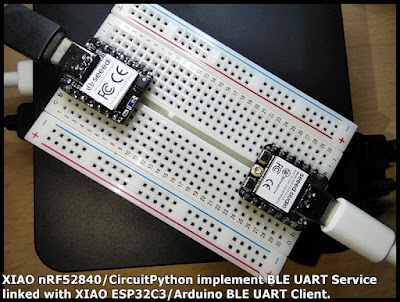
XIAO nRF52840/CircuitPython implement BLE UART Service, linked with XIAO ESP32C3/Arduino BLE UART Client.

Image
  The BLE GATT Nordic UART Service (NUS) is a custom service that receives and writes data and serves as a bridge to the UART interface. ref: https://developer.nordicsemi.com/nRF_Connect_SDK/doc/2.3.0/nrf/libraries/bluetooth_services/services/nus.html In this exercise, XIAO nRF52840 Sense running CircuitPython, implement BLE UART Service. cpynRF_ble.py """ Circuitpython BLE exercise Run on XIAO nRF52840 Sense/CircuitPython 8.1.0-beta.1 Provide an echo service over BLE UART. Act as BLE UART server, receive from BLE UART and echo back ref: https://learn.adafruit.com/circuitpython-ble-libraries-on-any-computer/ble-uart-example """ import os, sys import time import board, busio from adafruit_ble import BLERadio from adafruit_ble.advertising.standard import ProvideServicesAdvertisement from adafruit_ble.services.nordic import UARTService #------------------------ print("========================================") print(...

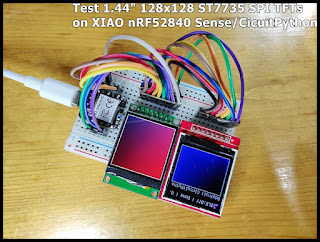
Test 1.44" 128x128 ST7735 SPI TFTs, on XIAO nRF52840 Sense/CicuitPython

Image
These are two models of ST7735 SPI TFT LCD : - marked "haoda-SPI-144" green pcb - marked "KMR1441_SPI V2" red pcb both are 1.44 inch 128x128, but in difference setting. It's a exercise run on  XIAO nRF52840 Sense with CircuitPython 8.1.0-beta.1, to display on them using adafruit_st7735 and adafruit_st7735r libraries with parameters setting. remark: I bought "KMR1441_SPI V2" a few years ago. This exercise just for functional testing for programming, not for quality comparison. Libraries needed - adafruit_display_shapes folder - adafruit_st7735.mpy - adafruit_st7735r.mpy Connection #connection #TFT_GND GND #TFT_VCC 3V3 TFT_SCL = board.SCK #D8 TFT_SDA = board.MOSI #D10 TFT_RES = board.D3 TFT_DC = board.D4 TFT_CS = board.D5 #TFT_BL 3V3 Both LCDs connected in parallel. Exercise code cpynRF_st7735.py """ Test on two 1.44" 128x128 ST7735 SPI IFI - "haoda-SPI-144" green pcb - ...

CircuitPython to list pin map

Image
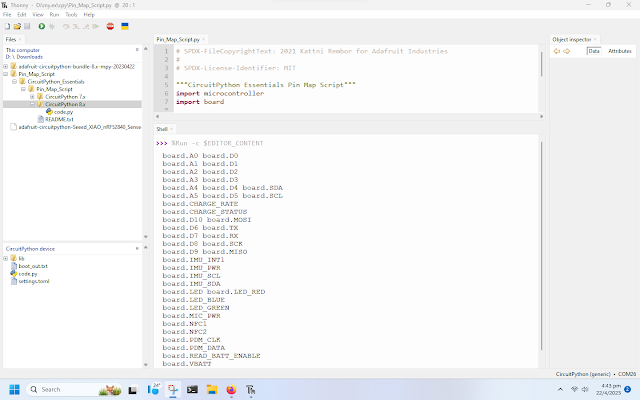
Many pins on CircuitPython compatible microcontroller boards have multiple names, however, typically, there's only one name labeled on the physical board. So how do you find out what the other available pin names are? Simple, with the following script! Each line printed out to the serial console contains the set of names for a particular pin. ref:   CircuitPython Essentials > CircuitPython Pins and Modules > What Are All the Available Names? # SPDX-FileCopyrightText: 2021 Kattni Rembor for Adafruit Industries # # SPDX-License-Identifier: MIT """CircuitPython Essentials Pin Map Script""" import microcontroller import board board_pins = [] for pin in dir(microcontroller.pin): if isinstance(getattr(microcontroller.pin, pin), microcontroller.Pin): pins = [] for alias in dir(board): if getattr(board, alias) is getattr(microcontroller.pin, pin): pins.append("board.{}".fo...

BLE UART Communication between XIAO ESP32C3 (client/central) and nRF52840 (server/peripheral), in Arduino Framework.

Image
Last post I have a  BLE UART Peripheral run on XIAO nRF52840 Sense (in Arduino Framework) , in this post I implement client/Central side running on XIAO ESP32C3 (in Arduino Framework also), modified from  ESP32 BLE Arduino > BLE_client example. Noted that the XIAO nRF52840 Sense server/Peripheral implemented a Nordic UART Service (NUS), so we have to use the matched UUIDs in client/Central side. - Nordic UART Service (NUS) UUID (6E400001-B5A3-F393-E0A9-E50E24DCCA9E) - RX Characteristic UUID (6E400002-B5A3-F393-E0A9-E50E24DCCA9E) - TX Characteristic UUID (6E400003-B5A3-F393-E0A9-E50E24DCCA9E). XESP32C3_BLE_client.ino /* * Modify Examples for XIAO_ESP32C3 * > ESP32 BLE Arduino * > BLE_client * Run on Xiao ESP32C3. * With UUID of Nordic UART Service (NUS), to work with * XnRF52_bleuart_OLED_Terminal run on Xiao nRF52840 Sensse. * Read from Serial and send to BLE UART server/peripheral. */ /** * A BLE client example tha...

BLE UART Peripheral run on XIAO nRF52840 Sense (in Arduino Framework)

Image
With Seeed nRF52 Boards installed , this exercise show how to run BLE exercise on XIAO nRF52840 Sense in Arduino Framework, and test with nRF Connect App. And modified to display on OLED. With Seeed nRF52 Boards installed, you can open BLE UART Peripheral example from Adafruit Bluefruit nRF52 Libraries > Peripheral > bleuart. Refer to  XiaoESP32C3_Serial_Terminal.ino exercise in previous post " Xiao ESP32C3 display on SSD1306 128x64 OLED (I2C & SPI) using U8g2 Librar ", it's modified to display received char on OLED. XnRF52_bleuart_OLED_Terminal.ino /* * Modify Examples for Xiao nRF52840 Sense * > Adafruit Bluefruit nRF52 Libraries * > Peripheral * > bleuart * Run on Xiao nRF52840 Sense, * to display received char on I2C OLED. */ /********************************************************************* This is an example for our nRF52 based Bluefruit LE modules Pick one up today in the adafruit shop...

XIAO nRF52840 Sense/XIAO Expansion board display on OLED in Arduino framework, using U8g2 Library.

Image
With  Seeed nRF52 Boards installed on Arduino IDE , this video show how 128x64 I2C OLED (SSD1306/SSD1315) displayed on  XIAOnRF52840 Sense and XIAO Expansion board . Make sure U8g2 is installed in Arduino IDE. Open Examples > U8g2 > full_buffer > GraphicsTest Uncomment the contructor U8G2_SSD1306_128x64_NONAME_F_HW_I2C using hardware I2C 128x64 SSD1306 driver. ~ more exercise to drive SSD1306 using U8g2, refer to the post " Xiao ESP32C3 display on SSD1306 128x64 OLED (I2C & SPI) using U8g2 Library ". next: ~  BLE UART Peripheral run on XIAO nRF52840 Sense (in Arduino Framework)

Install Seeed nRF52 Boards on Arduino IDE 1.8.19 to program XIAO nRF52840 Sense in Arduino Framework (on Raspberry Pi OS)

Image
To program  Seeed Studio XIAO nRF52840 Sense in Arduino Framework, we have to install "Seeed nRF Boards" and/or "Seeed nRF52 mbed-enabled Boards" in Arduino IDE. This video show steps to install Seeed nRF52 Boards on Arduino IDE 1.8.19 (on Raspberry Pi OS 32-bit buster). Click File in Arduino IDE MENU > Preferences add the follow link in Additional Boards Manager URLs box. https://files.seeedstudio.com/arduino/package_seeeduino_boards_index.json If you are reported error of: exec: "adafruit-nrfutil": executable file not found in $PATH You have to install adafruit-nrfutil, enter the command in terminal: $ pip3 install --user adafruit-nrfutil In my case, adafruit-nrfutil installed successfully but not on PATH. To add the installed directory to PATH, edit ~/.bashrc: $ nano ~/.bashrc Add following code in the end of .bashrc: PATH=${PATH}:<installed directory> export PATH In nano, Ctrl-X and answer Y and ENTER to accept ...

XIAO nRF52840 Sense/CircuitPython examples for SSD1306 I2C OLED

Image
This post show how to display on  128x64 SSD1306 I2C OLED in  XIAO nRF52840 Sense/XIAO Expansion board , running CircuitPython. In CircuitPython, to display on SSD1306, there are two approach: - framebuf  (using adafruit_ssd1306/adafruit_framebuf) - displayio (using adafruit_displayio_ssd1306) framebuf  (using adafruit_ssd1306/adafruit_framebuf) This video show steps to run CircuitPython Library Bundle's examples using adafruit_ssd1306/adafruit_framebuf. displayio (using adafruit_displayio_ssd1306) This video show steps to run CircuitPython Library Bundle's examples using adafruit_displayio_ssd1306. cpyX_nRF_displayio_ssd1306_aniCircle.py , my exercise using displayio to display a animated Circle (with title) over random pixel. """ coXXect: Exercise to display on 128x64 SSD1306 I2C OLED in XIAO nRF52840 Sense/XIAO Expansion board, running CircuitPython. Using displayio Libs needed: - adafruit_displayio_ssd1306.mpy - adafruit_display_...

CircuitPython to scan I2C devices address

Image
To scan I2C devices address using CircuitPython: import time import board print("I2C SDA:", board.SDA) print("I2C SCL:", board.SCL) i2c = board.I2C() while not i2c.try_lock(): pass try: devices = i2c.scan() print("I2C addresses:", [hex(address) for address in devices]) finally: i2c.unlock() Test on Seeed Studio XIAO nRF52840 Sense with XIAO Expansion board , running CircuitPython 7.3.2 .

Install CircuitPython Firmware on Seeed Studio XIAO nRF52840 Sense

Image
To install CircuitPython on XIAO nRF52840 Sense is straightforward. Basically follow the steps in the guide XIAO BLE with CircuitPython . This video show how, but download firmware from CircuitPython, instead of download from Seeed Studio page. Download Firmware Visit CircuitPython Download page , Search "Seeed XIAO nRF52840 Sense by SEEED" and download firmware in .UF2 form. Enter Bootloader Mode Make XIAO nRF52840 Sense enter Bootloader Mode by double clicking on the RESET button. Install firmware Once entered Bootloader Mode, drag the downloaded firmware (.uf2) to the XIAO nRF52840 Sense drive. After installed, XIAO nRF52840 Sense will reset and CircuitPython device re-appear again as "CIRCUITPY". Then, you can test it using Thonny Python IDE. more of CircuitPython on XIAO nRF52840 Sense: ~ Erase and re-create the CIRCUITPY filesystem by calling storage.erase_filesystem() . ~ Scan I2C devices address . ~  XIAO nRF52840 Sense/Cir...

my dev.board - Seeed Studio XIAO nRF52840 Sense and XIAO Expansion board

Image
Pinout of XIAO nRF52840 Sense: Pinout of XIAO Expansion board: Getting Started Guide: -  XIAO BLE Sense (XIAO nRF52840 Sense) -  XIAO Expansion board More: ~  Install CircuitPython Firmware on Seeed Studio XIAO nRF52840 Sense (and more exercise using CircuitPython ). ~  Install Seeed nRF52 Boards on Arduino IDE 1.8.19 to program XIAO nRF52840 Sense in Arduino Framework (on Raspberry Pi OS) Exercises of XIAO nRF52840 Sense: ~  Test 1.44" 128x128 ST7735 SPI TFTs, on XIAO nRF52840 Sense/CicuitPython ~  XIAO nRF52840/CircuitPython implement BLE UART Service, linked with XIAO ESP32C3/Arduino BLE UART Client . Exercises with XIAO Expansion board: ~  XIAO nRF52840 Sense/CircuitPython examples for SSD1306 I2C OLED ~  Xiao ESP32C3 display on SSD1306 128x64 OLED (I2C & SPI) using U8g2 Library (arduino-esp32) ~  XIAO nRF52840 Sense/XIAO Expansion board display on OLED in Arduino framework, using U8g2 Library ...