Posts

Install MicroPython on Nologo Nano 33 BLE nRF52840

Image
This video show steps to install MicroPython on Nologo Nano 33 BLE nRF52840 manually, basically follow the  MicroPython with Arduino page . Notice that to update bootloader and install the Soft Device, you have to make sure Arduino Mbed OS Nano Boards is installed in Board Manager. And select Board of Arduino Mbed OS Nano Boards > Arduino Nano 33 BLE. With MicroPython firmware flashed, you can download and install  Arduino Lab for MicroPython . Arduino Lab for MicroPython is a lightweight editor for MicroPython programs, supporting connection with a board, code upload, file transfer, interactive REPL shell. You can resume Arduino after MicroPython flashed.

Control 3.2" 240x320h IPS SPI Module ILI9341 with cap. touch FT6336U on Nologo Nano 33 BLE (Arduino Framework)

Image
In this post, to Control 3.2" 240x320h IPS SPI Module ILI9341 with cap. touch FT6336U with Nologo Nano 33 BLE in Arduino Framework, Adafruit_ILI9341 and Arduino-FT6336U libraries are need. - To install Adafruit_ILI9341, read the video in Raspberry Pi Pico (RP2040) + 3.2inch IPS SPI Module ILI9341 . - To download and install Arduino-FT6336U, read the video in Detect FT6336U Capacitive Touch Screen on Raspberry Pi Pico using Arduino-FT6336U library . Connection ILI9341 Module      Nano 33 BLE 1 VCC      3V3 2 GND             GND 3 LCD_CS      D5 4 LCD_RST      D6 5 LCD_RS      D7 6 SDI(MOSI)    D11 (SPI COPI) 7 SCK      D13 (SPI SCK) 8 LED      3V3 9 SDO(MISO)    D12 (SPI CIPO) 10 CTP_SCL      A5 (I2C SCL) 11 CTP_RST      D8 12 CTP_SDA     ...

my dev.board - Nologo UNO R4 WiFi

Image
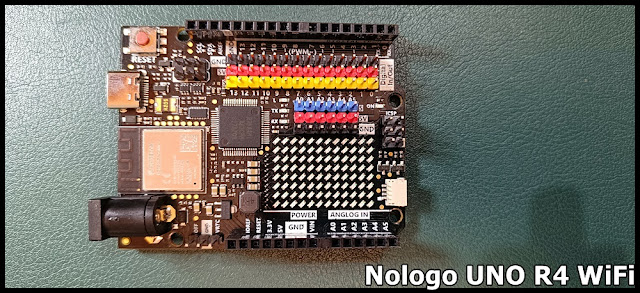
my dev.board - Nologo UNO R4 WiFi Follow the  UNO R4 WiFi Getting Starte guide to install Board Package in Arduino IDE . First try Nologo UNO R4 WiFi and LED Matrix examples more: ~  Check and update UNO R4 WiFi firmware ~  List pins of Nologo UNO R4 WiFi ~  BLE examples run on Nano 33 BLE (as Peripheral) and Uno R4 WiFi (as Central) in Arduino framework using ArduinoBLE library ~  BLE communication between MicroPython aioble and ArduinoBLE ~  Display on SSD1306/SSD1315 OLED with Uno R4 WiFi & Nano 33 BLE using U8g2 library ~  Display on SSD1306/SSD1315 OLED with Uno R4 WiFi & Nano 33 BLE using Adafruit SSD1306 library ~  Flashing Heart on Uno R4 WiFi

Control Nologo Nano 33 BLE nRF52840 on-board LEDs

Image
Arduino code to control Nologo Nano 33 BLE nRF52840 on-board LEDs /* Exercise run on Nano 33 BLE nRF52840 to change LEDs. */ // the setup function runs once when you press reset or power the board void setup() { delay(1000); Serial.begin(9600); delay(500); Serial.print("LED_BUILTIN: "); Serial.println(LED_BUILTIN); Serial.print("LEDR: "); Serial.println(LEDR); Serial.print("LEDG: "); Serial.println(LEDG); Serial.print("LEDB: "); Serial.println(LEDB); // set LED pins to output mode pinMode(LEDR, OUTPUT); pinMode(LEDG, OUTPUT); pinMode(LEDB, OUTPUT); pinMode(LED_BUILTIN, OUTPUT); //turn off all LED digitalWrite(LED_BUILTIN, LOW); digitalWrite(LEDR, HIGH); digitalWrite(LEDG, HIGH); digitalWrite(LEDB, HIGH); } void changeRGB(){ digitalWrite(LEDR, HIGH); digitalWrite(LEDG, HIGH); digitalWrite(LEDB, HIGH); delay(1000); digitalWrite(LEDR, LOW); //LEDR On delay(500); digit...

Draw Rotated Squares using Python with Turtle Graphics

Image
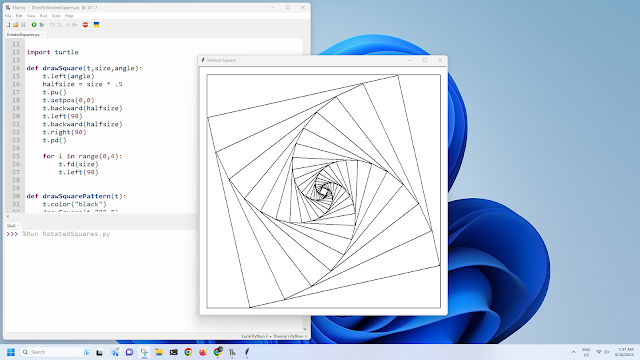
RotatedSquares.py , Python script to draw Rotated Squares using Turtle Graphics. (code copied from  https://deborahrfowler.com/MathForVSFX/RotatedSquares.html ) # Rotated Squares # # program to draw continually shrinking squares to give an interesting pattern # # Author: Deborah R Fowler # Date: Jan 11, 2020 # # input: none # output: interesting pattern # import turtle def drawSquare(t,size,angle): t.left(angle) halfsize = size * .5 t.pu() t.setpos(0,0) t.backward(halfsize) t.left(90) t.backward(halfsize) t.right(90) t.pd() for i in range(0,4): t.fd(size) t.left(90) def drawSquarePattern(t): t.color("black") drawSquare(t,700,0) for i in range(0,20): size = 700 * pow(1/1.2,i+1) drawSquare(t,size,12.5) t.ht() def main(): turtle.setup(750,750) turtle.title("Rotated Squares") t = turtle.Pen() t.width(2) t.speed(0) drawSquarePattern(t) turtle...

Python script with tkinter GUI to capture images from Raspberry Pi Camera Module 3

Image
Python script with tkinter GUI run on Raspberry Pi 4B/8G running 32-bit Raspberry Pi OS (bullseye), to capture images from Raspberry Pi Camera Module 3 . cam_tkinter_capture.py from tkinter import * from tkinter import messagebox from picamera2 import Picamera2, Preview from libcamera import controls import time import sys picam2 = Picamera2() camera_config = picam2.create_preview_configuration() picam2.configure(camera_config) picam2.start_preview(Preview.QTGL) picam2.set_controls({"AfMode": controls.AfModeEnum.Continuous}) picam2.start() root = Tk() root.title(sys.argv[0]) root.geometry("550x450") # center on screen root.eval('tk::PlaceWindow . center') labelframe = LabelFrame(root, text="Click button to capture image") labelframe.pack(fill = "both", expand = "yes") def btnCallBack(): print("- Capture image -") timeStamp = time.strftime("%Y%m%d-%H%M%S") targetPath="/home/pi/Deskt...

Raspberry Pi Camera Module 3

Image
My  Raspberry Pi Camera Module 3 ~  Raspberry Pi Document > Camera Module Exercises using Raspberry Pi Camera Module 3: ~  Python script with tkinter GUI to capture images from Raspberry Pi Camera Module 3 ~  Python script with tkinter GUI to capture images from Raspberry Pi Camera Module 3, with Toggling AF mode function . Exercises run on Raspberry Pi 5 running 64-bit Raspberry Pi OS (bookworm) with Camera Module 3: ~  Using the Raspberry Pi Camera in Python3/PyQt5 applications using picamera2 lib